
Settings
Purpose
Settings is where you manage workspaces, notifications, billing, support, and - for admins - servers, tokens, and thresholds. It's the last tab at the bottom (side nav on desktop). Admin-only rows stay hidden for everyone else instead of showing locked screens.
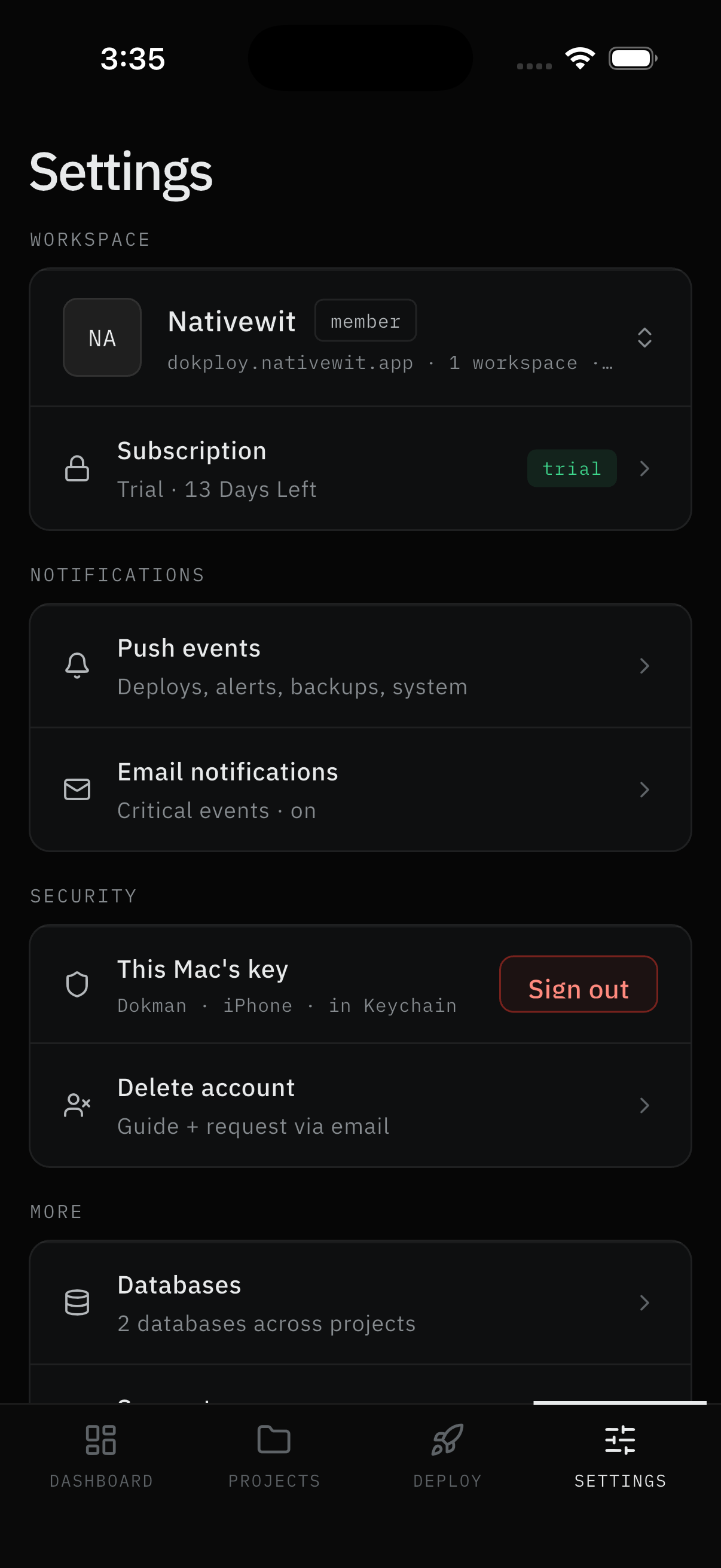
User Flow
Manage the workspace
Step 1: Use the top card
- Your current server sits at the top. Tap it to switch servers or add another one, or to log a workspace out of this device. Full tour in Workspaces.
- Below it, a Subscription row shows your plan status (including trial) and opens billing (Subscription).
Result:
- The active server changes, grows by one, or leaves this device.
Tune notifications
Step 2: Use the three rows
- Push events - what notifies this phone (deploys, alerts, backups, system).
- Email notifications - critical events by email (Pro), with a
verifybadge until you confirm the address. - Push setup - the Dokploy webhook relay with a
connected/not connectedindicator. Admins only; hidden otherwise.
Result:
- This phone's push, email, and relay state, in one place. History itself lives behind the Dashboard bell. Everything is covered in Notifications.
Stay secure
Step 3: Use the Security group
- Check your device key status.
- Sign out asks "Logout - are you sure?", then removes this workspace from this device only.
- Delete account opens the guide that walks you through requesting full deletion by email.
Result:
- Signed out, or on the way to deletion. Details in Account & Security.
Use More and Management
Step 4: Know the remaining rows
- More holds Databases (every database, with a live count), Support (contact email, user guide, privacy, terms), and Version (app version and build number).
- Management holds admin-only shortcuts: Servers, Metrics Token, Alert Thresholds, Backups. Missing rows mean a non-admin role - those screens redirect to the Dashboard instead.
- Developer holds Copy JWT, on debug builds only - never in production.
Result:
- Every row accounted for; nothing hidden that you should be able to use.
Screens Involved
- Settings (Workspace card + Subscription, Notifications, Security, More, Management, Developer)
- Workspace switcher sheet, and every destination screen linked above
Inputs
User Inputs:
- Row taps (switch, add, sign out, open screens)
- Delete-account email request (see linked page)
Outputs
- Navigation to the picked screen, or workspace/log-out state changes
Error Handling and Edge Cases
| Scenario | System Behavior |
|---|---|
| Admin row missing | Non-admin role - screen would redirect anyway |
| Push setup shows "not connected" | Relay unhealthy - see Webhook Setup |
Email row shows verify | Address unconfirmed - verify from the email screen |