Notifications
Purpose
Dokman alerts you when something happens - a deploy finishes, a backup completes, a server crosses a threshold. Push delivery needs Pro past the trial (toggles stay visible regardless); everything else here is per phone. Push toggles and email live in Settings, then Notifications; the History inbox lives behind the bell on the Dashboard.
User Flow
Choose what notifies you
Step 1: Set Preferences
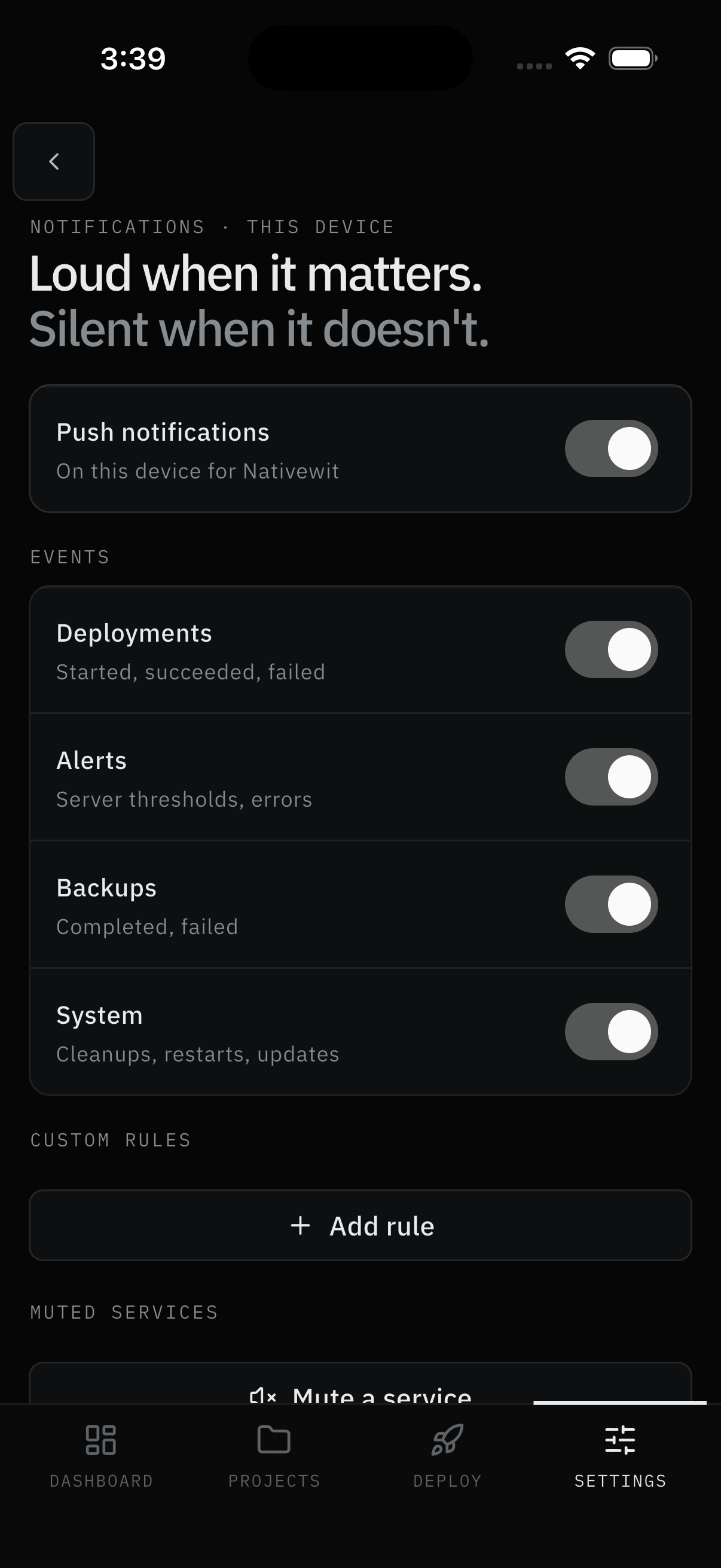
- Open Settings → Notifications → Push events. The hero states the contract: loud when it matters, silent when it doesn't.
- Push notifications is the master switch for this phone. Below it, the four categories carry their scope:
- Deployments - Started, succeeded, failed
- Alerts - Server thresholds, errors
- Backups - Completed, failed
- System - Cleanups, restarts, updates
Result:
- This phone buzzes only for what you left on. Tablets and other phones keep their own settings.
Note:
- If a deploy belongs to a project you can't see in Dokploy, you won't get that push. Dokman only notifies you for projects you already have access to.
- Server-level alerts (CPU, disk) aren't filtered by project. With alerts on, you get those.
Add email alerts
Step 2: Verify an address
Critical-event email (build failures, downtime, backup alerts) is a Pro feature with its own verify-and-resend flow - covered fully in Email Notifications.
Result:
- Critical events also arrive by email, per workspace.
Use Pro controls
Step 3: Fine-tune (Pro)
Thresholds, per-service mutes, quiet hours, and custom rules live in Alerts. Those sections only exist on Pro - free accounts simply don't see them.
Result:
- Only what you defined as worth waking up for reaches you.
Handle the device limit
Step 4: Stay within the cap
- Push belongs to physical phones, and each account is capped at a few active devices (usually three).
- If you hit Device limit reached, open Manage devices, revoke a phone you no longer use, and tap Retry this device.
Result:
- This phone registers; revoked phones stop receiving pushes immediately.
Read the inbox
Step 5: Open History
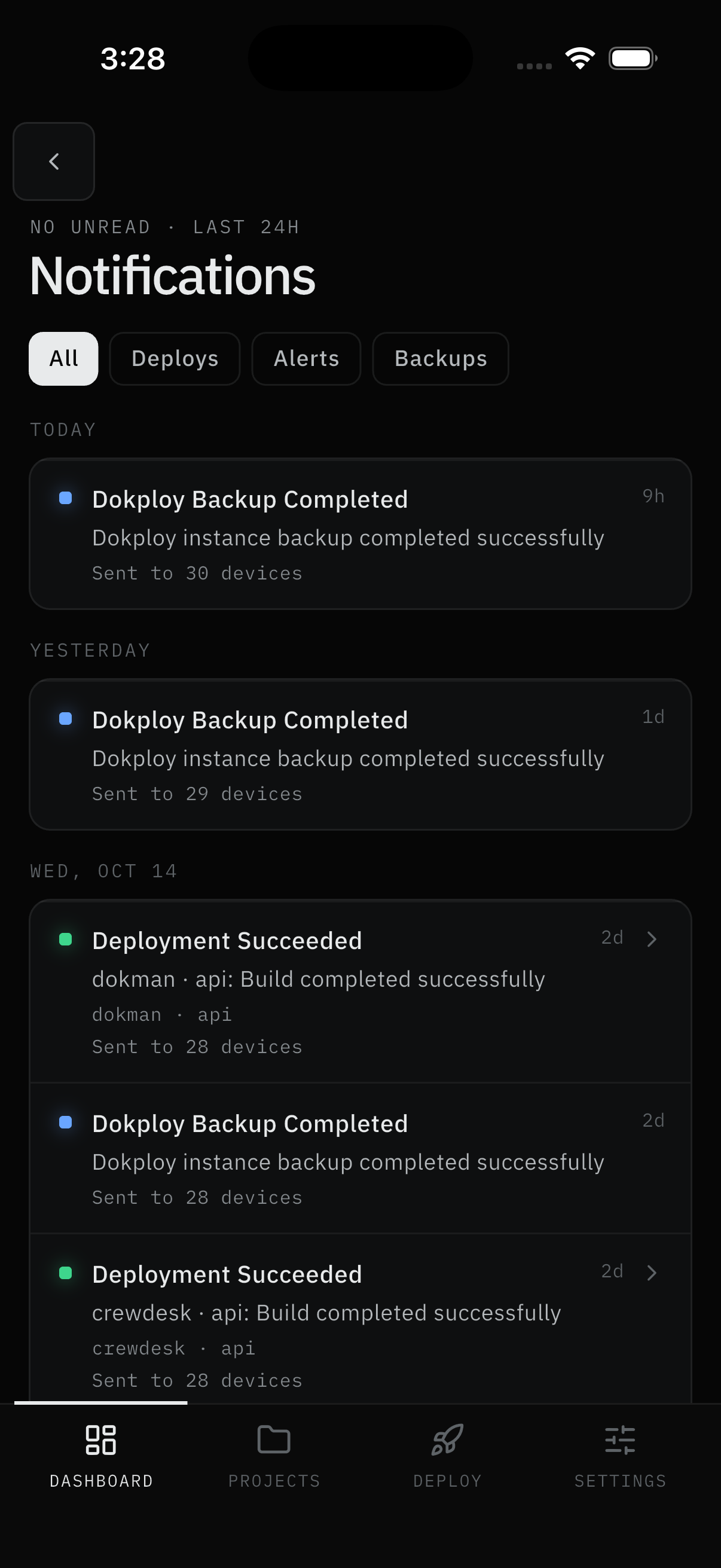
- Tap the Dashboard bell. The eyebrow tracks state (
NO UNREAD · LAST 24H); chips filter All, Deploys, Alerts, Backups. Entries group under day headers (TODAY,YESTERDAY, …) with colored dots, relative times, and aSent to N devicesline. - Pull down to refresh, scroll to load more. The dot means unread - it clears once you open History.
- Tap any row (chevron) to jump straight to its service, deployment, or server. Removed items land you on the Dashboard instead.
Result:
- You catch up on everything sent, newest first.
Screens Involved
- Notification preferences (hero, master switch, four categories, Pro sections)
- Device-limit sheet (device list, Revoke, Retry)
- Email notifications (critical toggle, verified row)
- History inbox (unread eyebrow, chips, day groups)
Inputs
User Inputs:
- Category toggles, master switch, email address
- Revoke / Retry choices
- History chips, row taps
Outputs
- Per-device push and email preferences saved
- Device registered (or revoked) for push
- Navigation to the tapped service, deployment, or server
Error Handling and Edge Cases
| Scenario | System Behavior |
|---|---|
| Push for an invisible project never arrives | By design - pushes only cover projects you can access |
| Device limit reached | Revoke an old phone, then Retry |
| Verification link expired | Resend (short cooldown applies) |
| System-level block | Notifications disabled for Dokman in phone settings - enable there |
| Webhook off | Dokploy has nowhere to send events - see Webhook Setup |