
Projects & Services
Purpose
Your services live inside projects. The Projects tab lists them; a project screen groups its services by environment; each service opens a detail screen with tabs for overview, env vars, domains, deployments, and logs. This section is how you find, inspect, change, and run anything.
User Flow
Browse projects
Step 1: Open the Projects tab
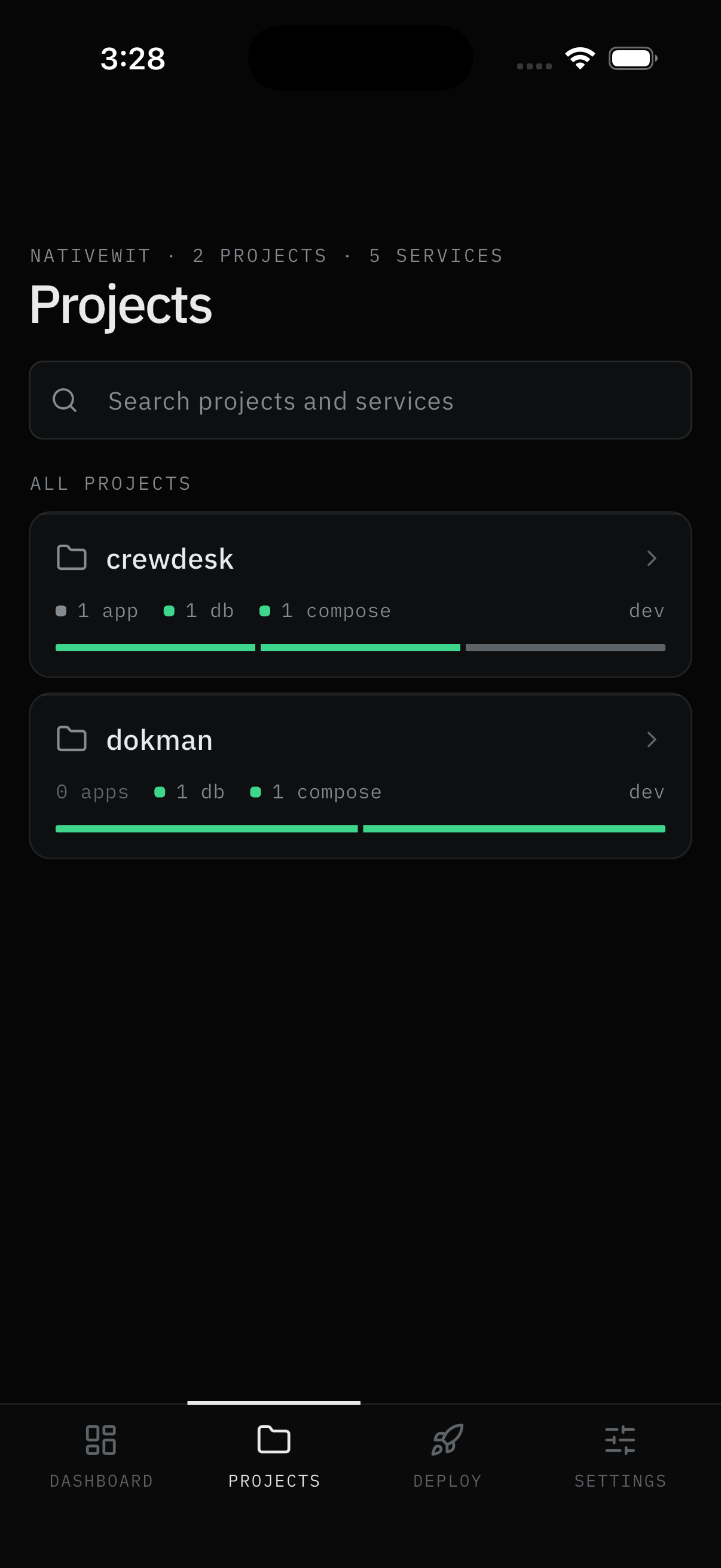
- Open Projects (second tab). The eyebrow counts everything:
ORG · N PROJECTS · N SERVICES. - Search
projects and servicesat the top when you have many. On desktop, sort A–Z or Z–A and hide empty projects from the view options. - Each card shows the project name, per-type counts (
1 app · 1 db · 1 compose), its environment tag, and a health bar. Tap a card to go inside.
Result:
- You see the project's services grouped by environment.
Note:
- If your plan and role allow it (Pro plus admin or an explicit create grant), a New project button sits above the list. Name it, add a description, and it appears in Dokploy as well as here. Services themselves are created in your Dokploy dashboard - Dokman manages them once they exist.
Work inside a project
Step 2: Filter and pick a service
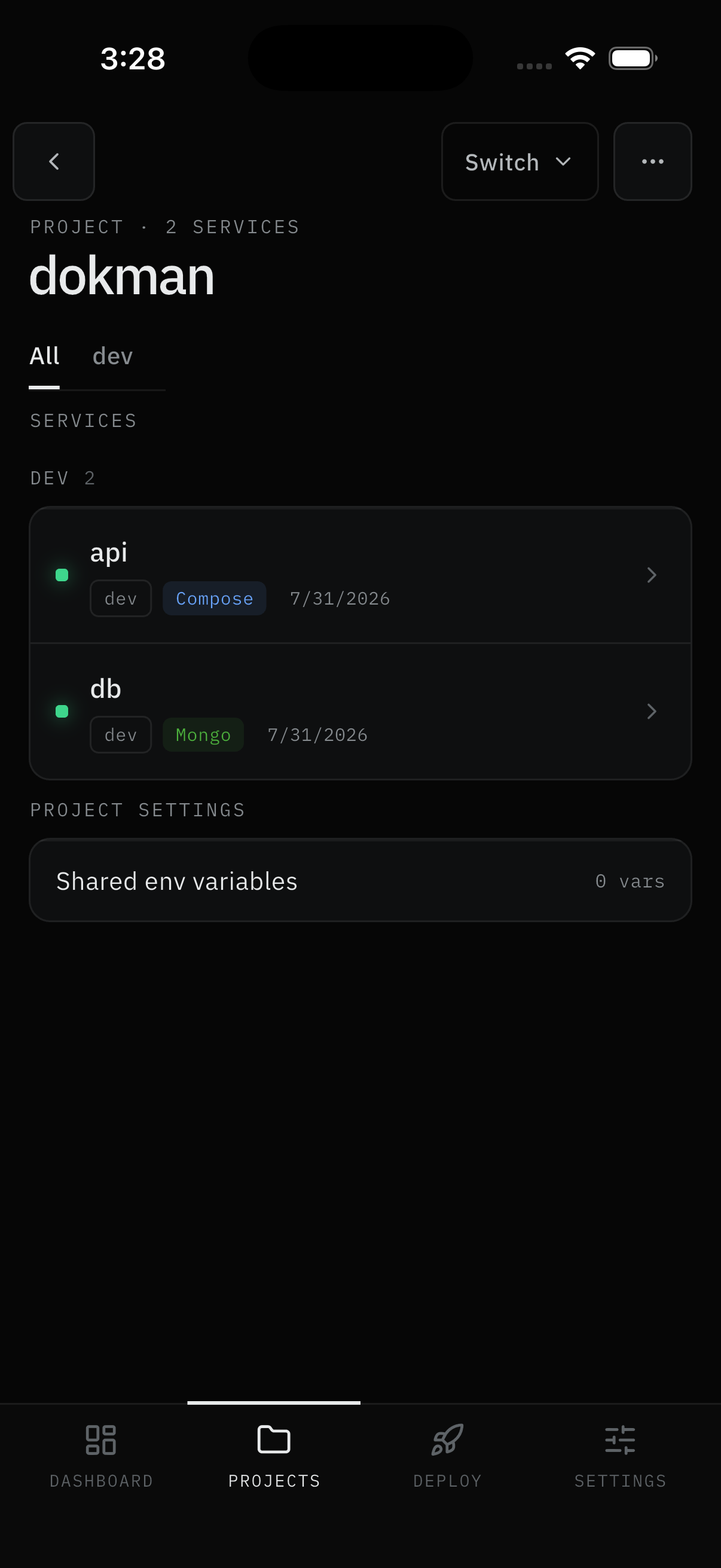
- Environment tabs at the top (All, plus
dev,production, …) filter the list; services group underSERVICESand per-environment headers with counts. - Each row shows a status dot, the name, an environment chip, a type chip (Compose, Mongo, PG, …), and the date. Tap a row to open its detail.
- Project settings below holds Shared env variables with its variable count.
Result:
- The service detail opens on its Overview tab.
Note:
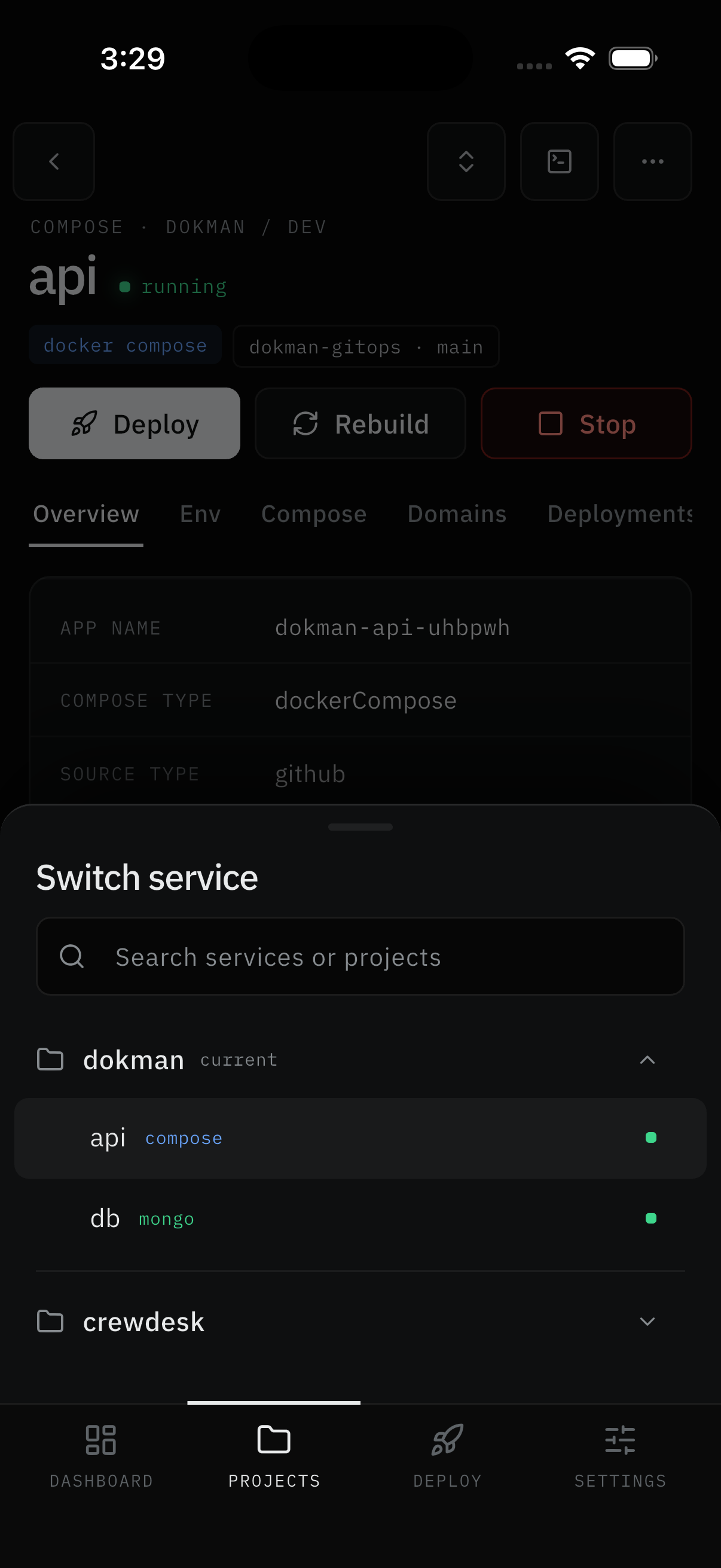
- To hop between services without going back, tap the Switch pill at the top of any detail screen - the Switch service sheet lists every project with search (
Search services or projects), each service with its type and status dot.
Use the detail tabs
Step 3: Act on the service
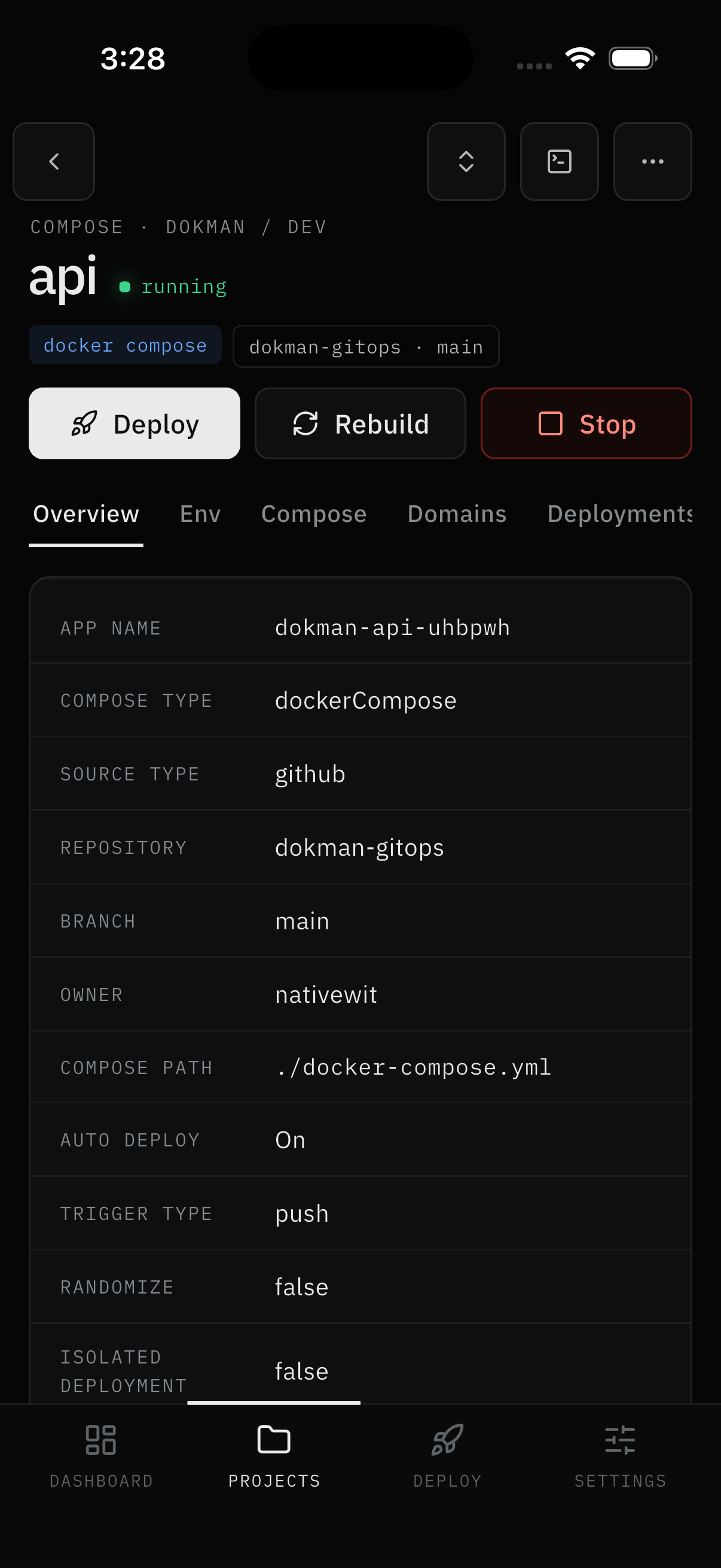
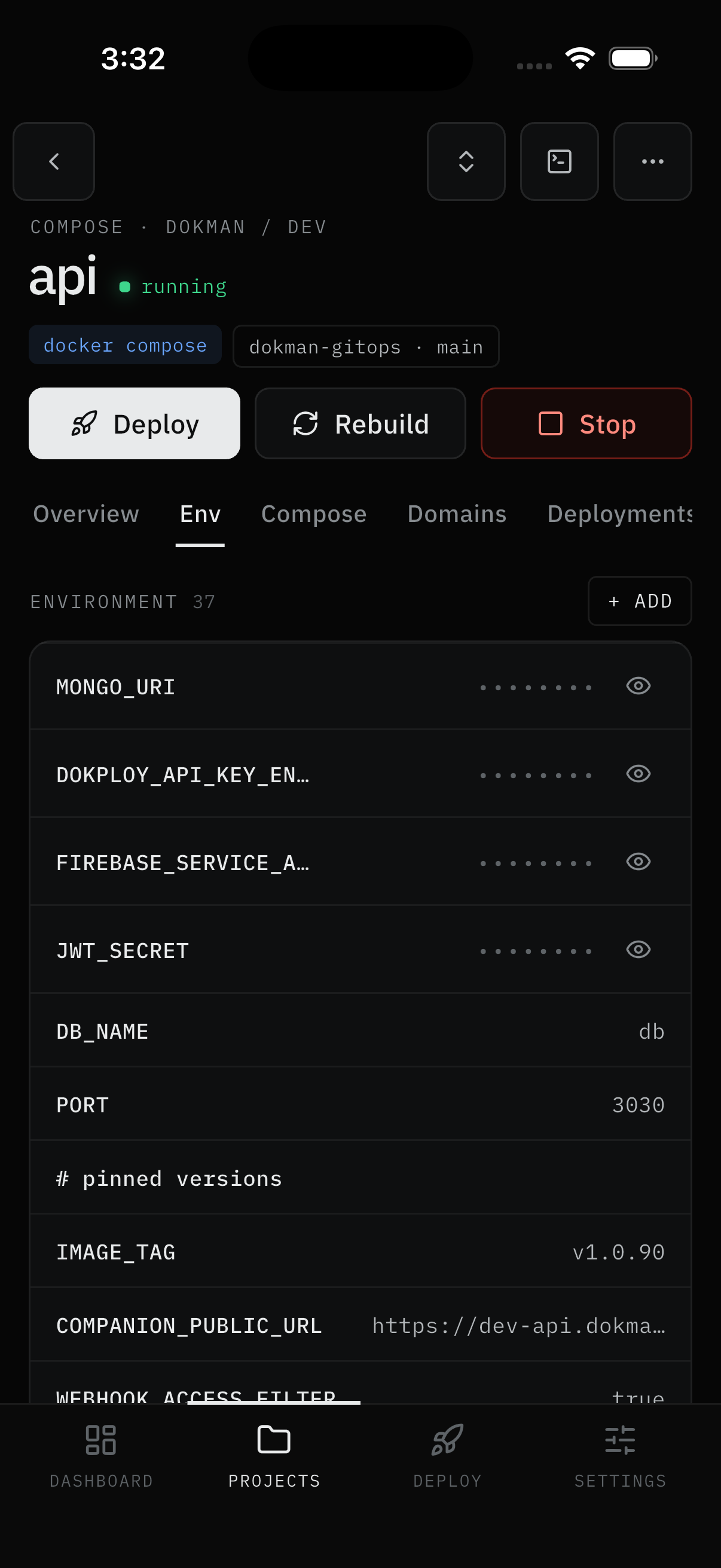
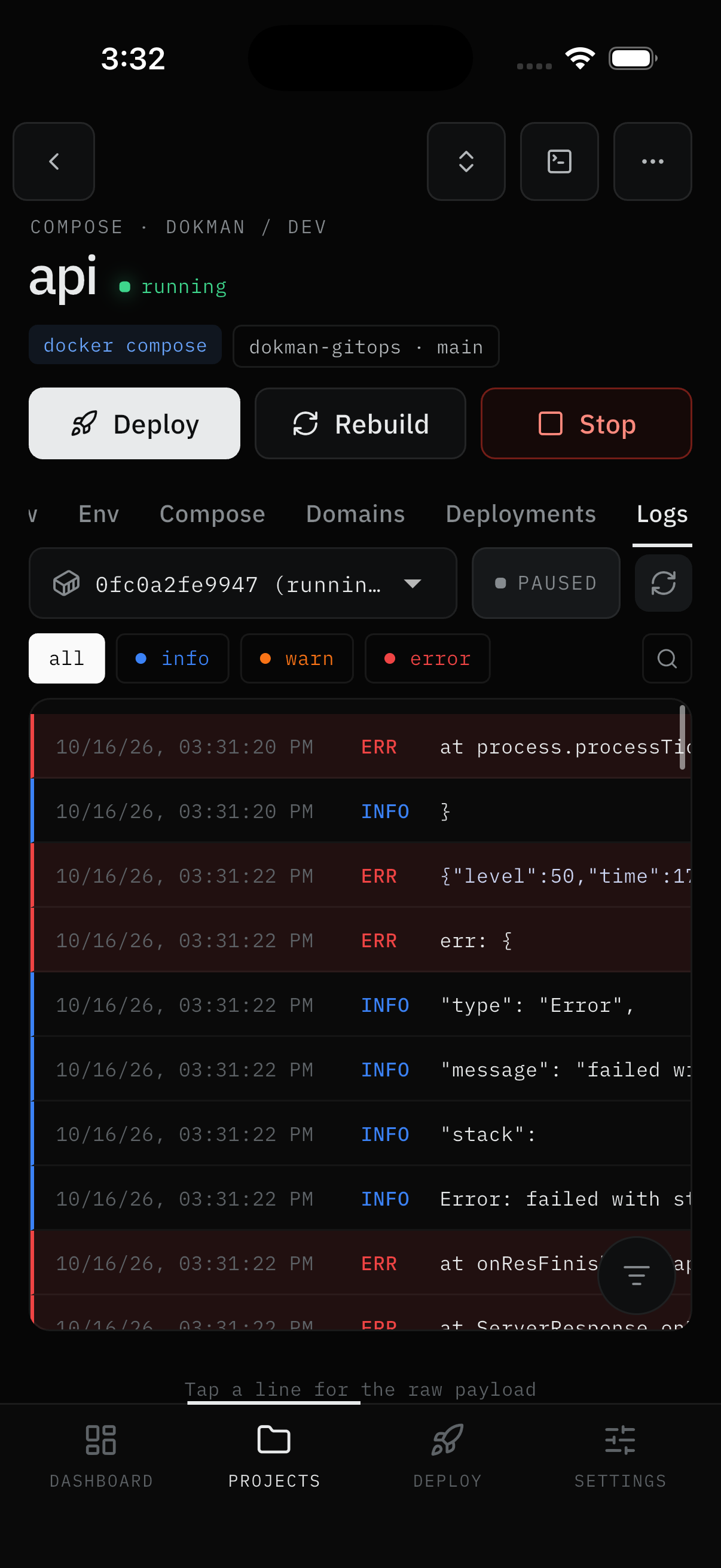
The header shows type, project, environment, name, status, and source chips, with Deploy, Rebuild, Stop (up/down) actions plus switcher, terminal, and overflow buttons. Tabs vary slightly by type - Apps show Overview, Env, Domains, Deployments, Logs; Compose adds a Compose tab:
- Overview - status, key facts (app name, types, repo, branch, owner, paths, flags), and the action buttons. The terminal icon opens a container shell (Pro).
- Env Vars - a counted list (
ENVIRONMENT 37) with + ADD. Secrets stay masked until you tap the eye. Change values and save; if Dokploy needs a redeploy to apply them, it asks first. - Domains - the domains pointed at this service, with port and certificate status. Remove one here (Pro); adding and editing happens in your Dokploy dashboard, and new domains appear here automatically.
- Deployments - previous deploys just for this service. Tap one to read its logs.
- Logs - the live tail: a container picker, a PAUSED badge with resume when you've scrolled up, level chips (all, info, warn, error), search, timestamped color-tagged lines. Tapping any line shows its raw payload.
Result:
- The action runs on your Dokploy; Deployments and Logs show what happened.
Databases and Compose
Step 4: Use the sibling screens
- Databases - Start/Stop and Deploy, a log tail (last 100 lines, 500 on Pro), connection details with copy, an Env Vars tab like an app's, and a delete button for admins.
- Compose - for file-based stacks, edit the Compose file right here, then Deploy or Stop the whole stack. Git-sourced stacks show a read-only preview with an "edit in repository" hint instead. Deployments and logs share the same tabs.
Result:
- Databases and stacks are managed without leaving the app.
Delete safely
Step 5: Remove what you mean to
- Deleting always asks first - and requires typing the exact name. There is no one-tap delete.
- Deleting a service needs the role; deleting a project, database, or compose stack additionally needs Pro - those menu items stay hidden without it.
- Buttons you aren't allowed to use (Delete on a project where you're read-only, for example) don't appear at all.
Result:
- The item is deleted in Dokploy, or nothing happens when you lack the role or plan.
Screens Involved
- Projects tab (search, cards, counts, New project)
- Project screen (environment tabs, grouped rows, shared env variables)
- Switch service sheet (search, project groups)
- Service detail (Overview, Env, Compose, Domains, Deployments, Logs)
- Database detail, Compose detail (sibling tabs)
Inputs
User Inputs:
- Search text, sort order, hide-empty toggle, environment tab
- New project name and description
- Edited env values, Compose file text
- Deploy / Rebuild / Stop / Start taps, log search and level filters
- Typed name to confirm deletions
Outputs
- Navigation to the picked service and tab
- Actions executed on Dokploy (deploy, rebuild, stop, start, save, delete)
- New project created in Dokploy and listed here
Error Handling and Edge Cases
| Scenario | System Behavior |
|---|---|
| Service/project missing | Your Dokploy account lacks access - ask an admin for project membership |
| New project button missing | Needs Pro plus the create grant |
| Delete button missing | Read-only role - or, for projects, databases, and compose stacks, missing Pro |
| Empty Projects tab | Message names the cause: no projects exist, no permission, or Pro needed |
| Env save needs redeploy | App asks first - nothing applies silently |