Getting Started
Purpose
This page takes you from zero to a working Dokman in about two minutes: install, connect your Dokploy server, pick an organization if needed, and verify the connection. You need your Dokploy address and the same login you use in the browser.
Prerequisites
- Your Dokploy address (like
https://dokploy.your-domain.com), reachable from your phone. - Your Dokploy email and password.
- Notification permission allowed when Dokman asks (iPhone and Android both require it) - that's how deploy alerts reach you.
User Flow
Install the app
Step 1: Get Dokman
- Install Dokman from the App Store / Play Store link your team shared - or open the web app at https://dokman-dev.web.app and sign in there. Same app, same login.
- No extra accounts to create.
Result:
- Dokman opens on the Setup screen.
Connect your server
Step 2: Enter connection details
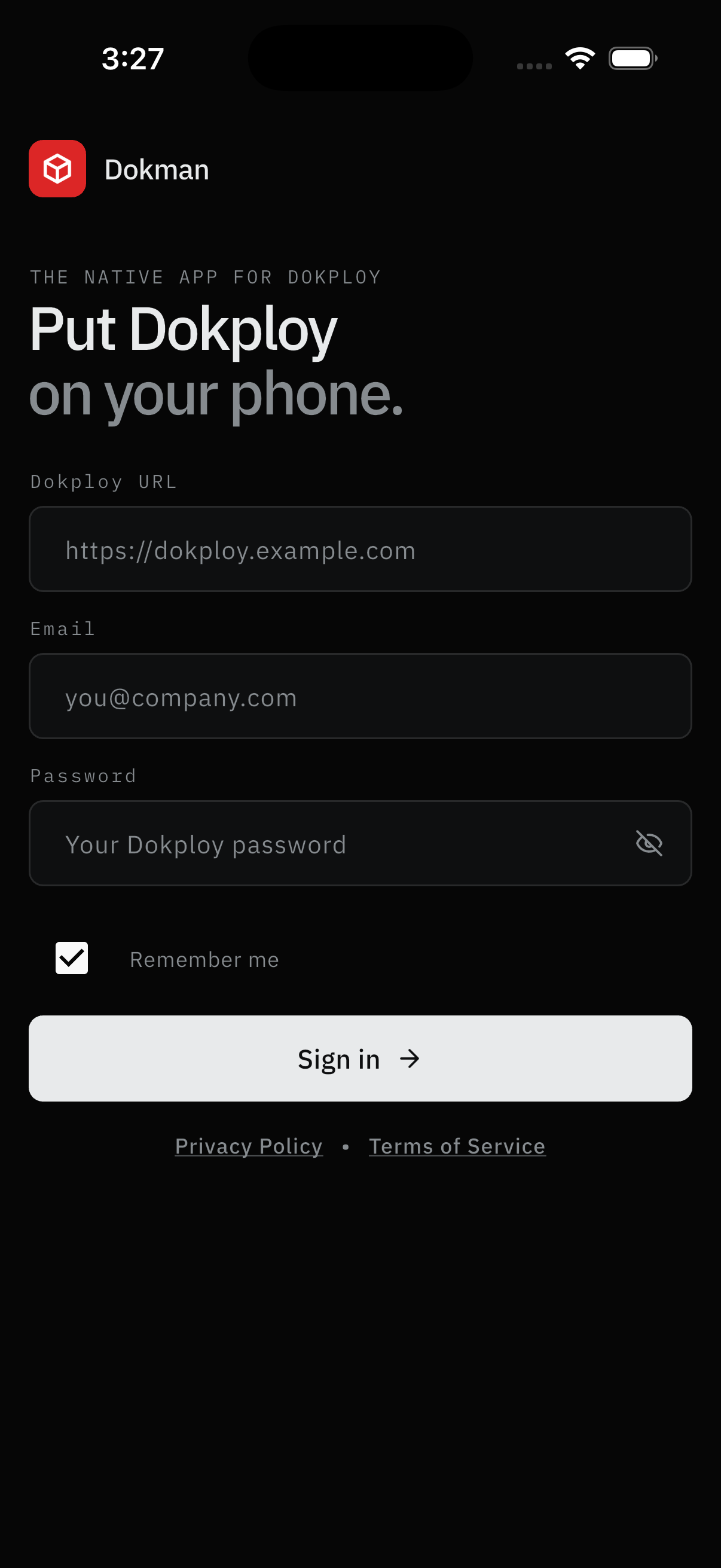
- The screen reads
THE NATIVE APP FOR DOKPLOY / Put Dokploy on your phone.Paste your Dokploy address (https://dokploy.example.com). Don't forget thehttps://at the start. - Enter your Email (
you@company.com) and Password, eye icon included. Leave Remember me on if you want your email filled in next time. - Tap Sign in →. The Privacy Policy • Terms of Service row below opens the legal pages.
Result:
- Dokman signs you in without keeping your password.
- Dokman registers this phone for push notifications.
Step 3: Pick an organization (if asked)
- If your account belongs to more than one organization, Dokman lists them.
- Choose one. You land on your Dashboard.
Result:
- The Dashboard loads with your projects, health, and deployments.
Note:
- The organization picker appears on every login. To change organizations later, open Settings → Workspace, then tap the organization row (subtitled Active organization · switch) and pick another org. The option is hidden when your account belongs to only one organization. (Servers are switched separately - see Workspaces.)
First-run tour (admins)
Step 4: Follow the highlights (first server only)
- If you're an admin connecting your first server, Dokman highlights the two things worth doing next: server health (needs a metrics token) and push setup (needs the webhook).
- The tour shows once and never nags again.
Result:
- You know exactly which two setup screens to visit next.
Verify it worked
- Pull down on the Dashboard. Stats and server health fill in.
- Tap Services. You see your projects.
- Open any service, then Deployments. You see recent deploys.
Missing something? That's usually not a bug. Dokman only shows what you're allowed to see in Dokploy. If a project isn't shared with you there, it won't show up here.
Screens Involved
- Setup screen (address, email, password, Remember me, Sign in)
- Organization picker (multi-org logins only)
- Dashboard
Inputs
User Inputs:
- Dokploy server address (URL)
- Dokploy email
- Dokploy password (used once, never stored)
- Organization choice (when applicable)
Outputs
- Signed-in session on this phone
- Active workspace connected to your Dokploy
- Phone registered for push notifications
Switching context later
- Organizations: open Settings → Workspace and tap the organization row (multi-org accounts only).
- Environments: inside a project (like
productionorstaging) tap the chips at the top to filter. - Signing out: Settings, then Security, then Sign out (confirm Logout). This signs the workspace out of this device only - see Account & Security.
Error Handling and Edge Cases
| Scenario | System Behavior |
|---|---|
Address missing https:// or typo | Setup shows "Invalid Server URL" - fix the address |
| Wrong email or password | Sign-in fails with an error - retry with current credentials |
| Too many attempts | Login locks briefly - wait about 15 minutes and try again |
| Session expired later | App returns to Setup - sign in again, and check your phone's clock |
| No projects visible | Your account isn't added to any projects in this organization - ask a Dokploy admin |